Track progress over multiple tests
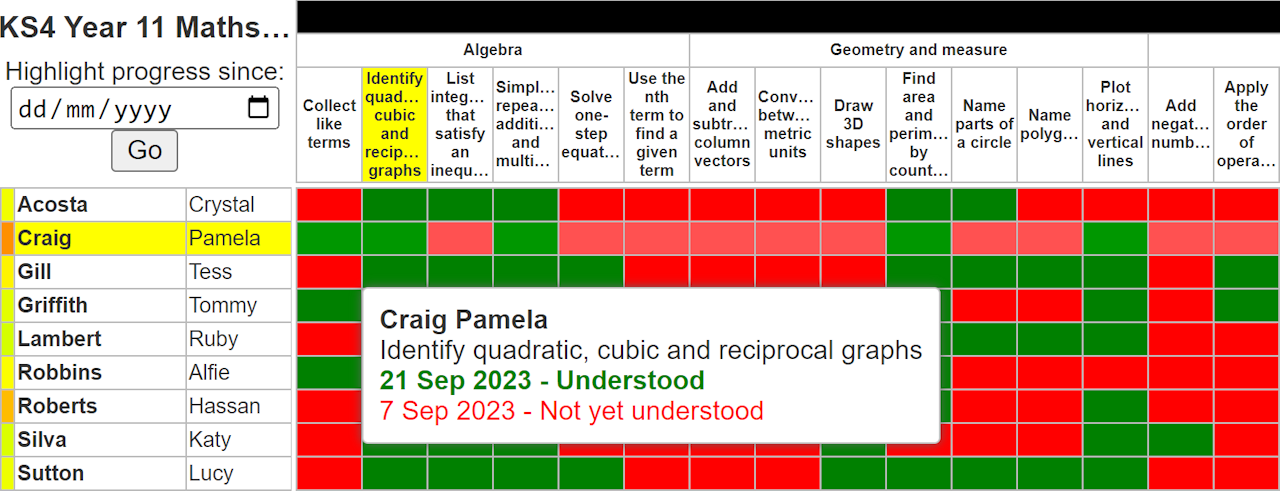
As well as analysing results for individual tests, you can create trackers to monitor students' understanding across whole units or schemes. To view all trackers, hover over your name in the top-right corner and select "View trackers".
Trackers always show students' most recent red/green results for each topic, taking into account all tests completed. Hovering over any cell shows a result history, so you can identify topics which were once red but have since turned green (or vice versa). You can also use the progress highlighting feature to show all topics in which students have improved.
At the bottom of the screen, there is an option to copy the tracker to the clipboard. This can then be pasted into a spreadsheet for further analysis.
Trackers can be created and edited by your school's MiniTest admin user.
GCSE Maths fluency checklists
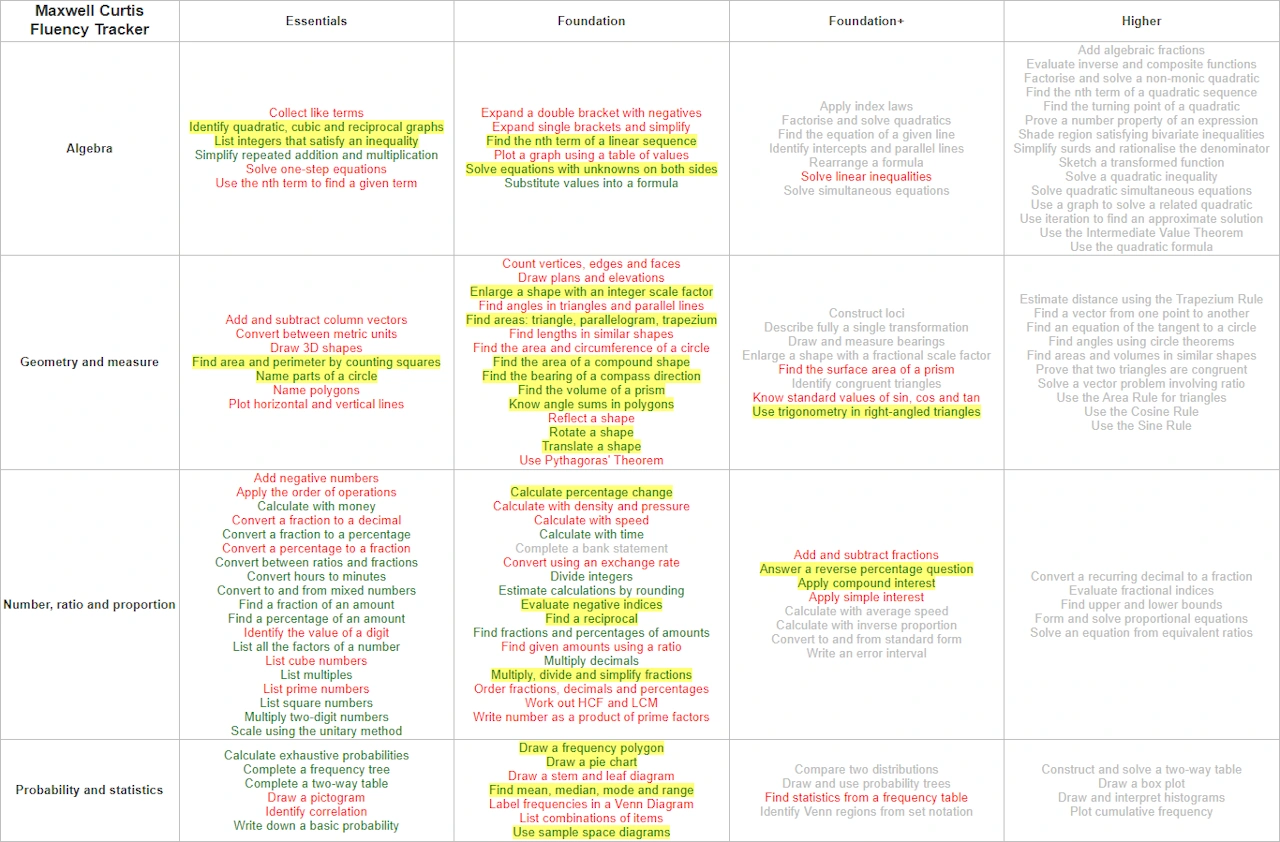
Another feature is specifically available to classes studying GCSE Mathematics. On the MiniTest homepage, click your class name and select "Print fluency checklists". This shows students' understanding across all the highest-frequency topics, in a format that can be easily printed and stuck in student books. As above, topics can be highlighted to show progress.