Specify a class handout order
When distributing personalised test feedback or result slips in class, it is fastest to hand them out when they are already printed in a preset order, according to your seating plan. For example, you might want to start with the front-left student and then follow a route around your classroom.
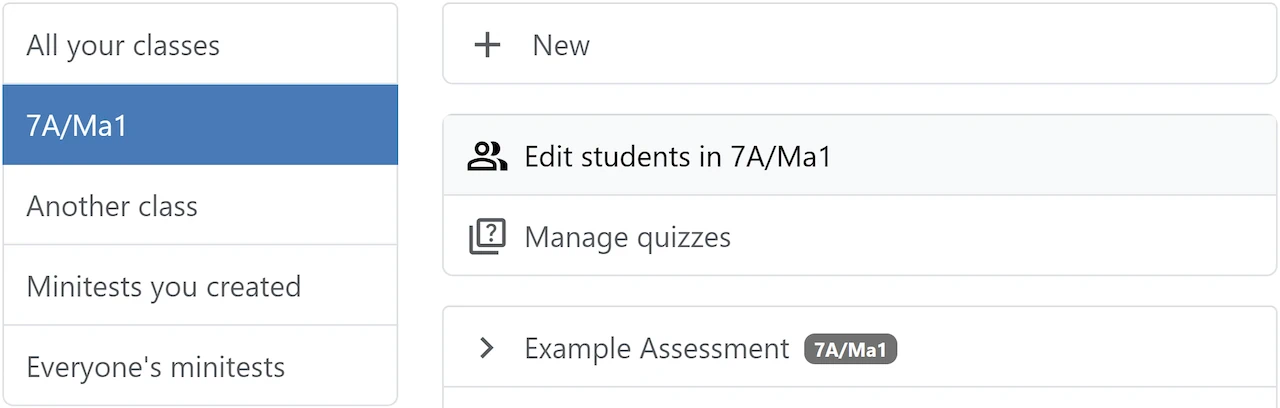
To get started, select your class from the list on the left of the homepage. Then click "Edit students".
All students in your class will be displayed. Drag and drop them into the desired order. This is saved automatically.
As an alternative to dragging, you can click on the handle next to a student, use the up and down arrows on your keyboard, and press Enter to save the position.
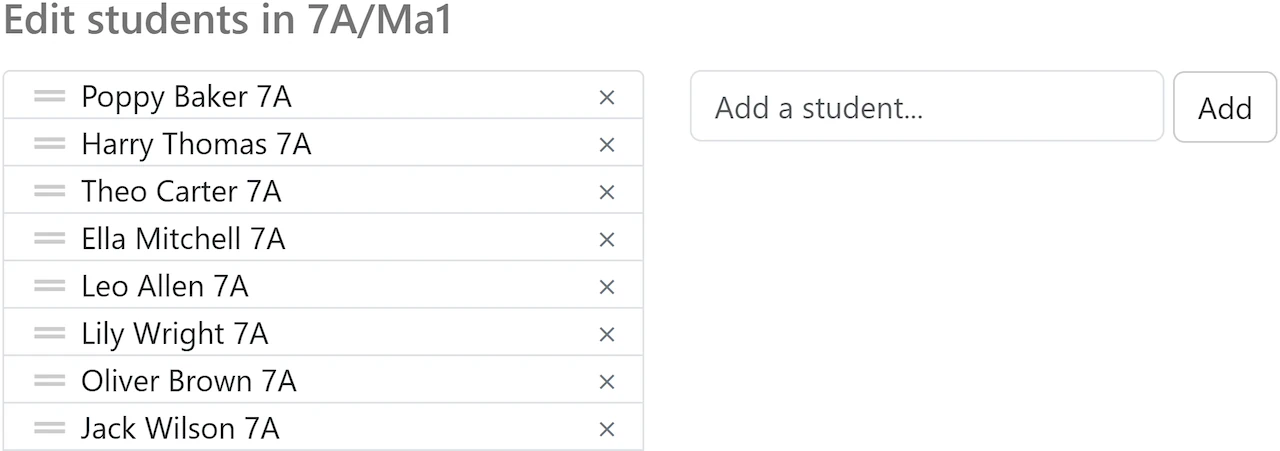
It is also possible to add or remove students from the class using this page. You can only add students whose details have already been uploaded to MiniTest. Manual changes will be overwritten at the next upload or Wonde sync.