Mark a test
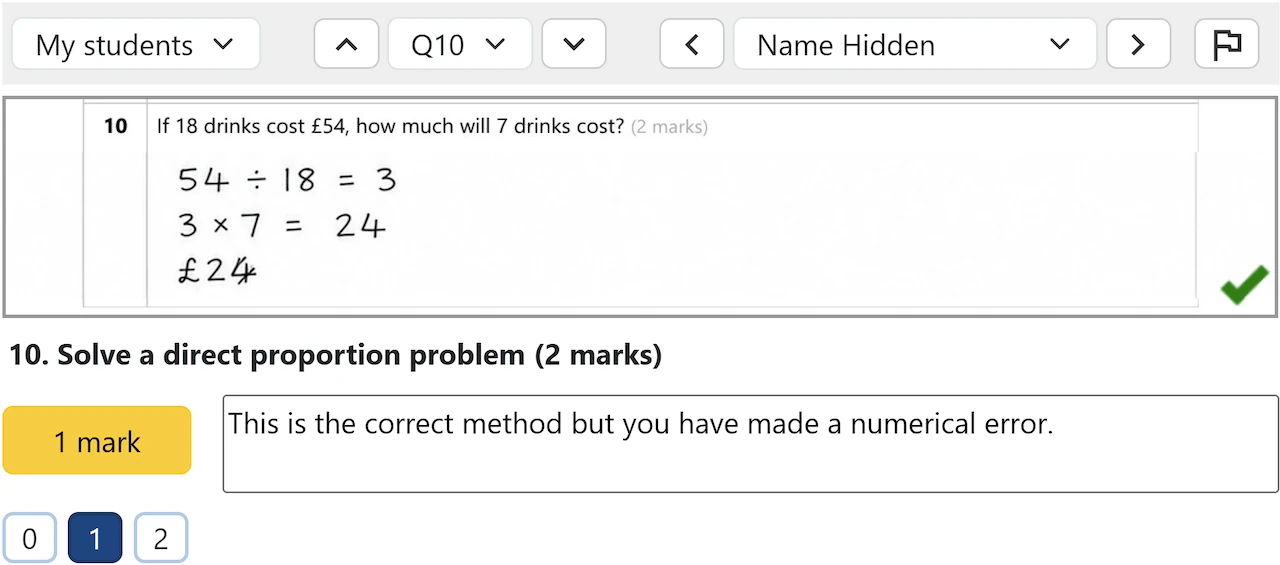
You mark one question at a time, and each student's response is shown in turn.
There are three ways to assign marks:
- Click one of the numbered buttons at the bottom of the screen.
- Use the number keys 0-9 on your keyboard.
- Click on the student work to assign one tick per mark, then click the "N marks" button to confirm.
If you are using red/green marking, you can:
- Click the tick or cross buttons at the bottom of the screen.
- Use R for red or G for green on your keyboard.
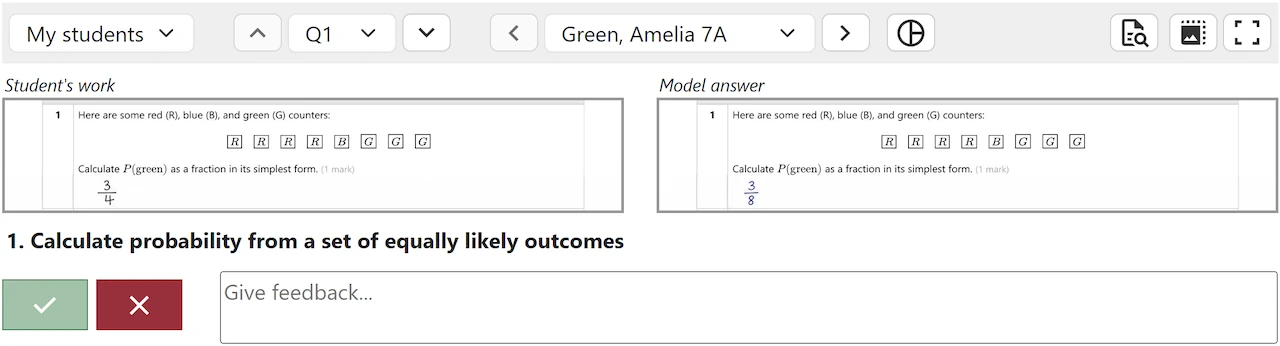
When model solutions have been uploaded, they appear alongside the student work. You can see this in the screenshot above.
Provide written feedback
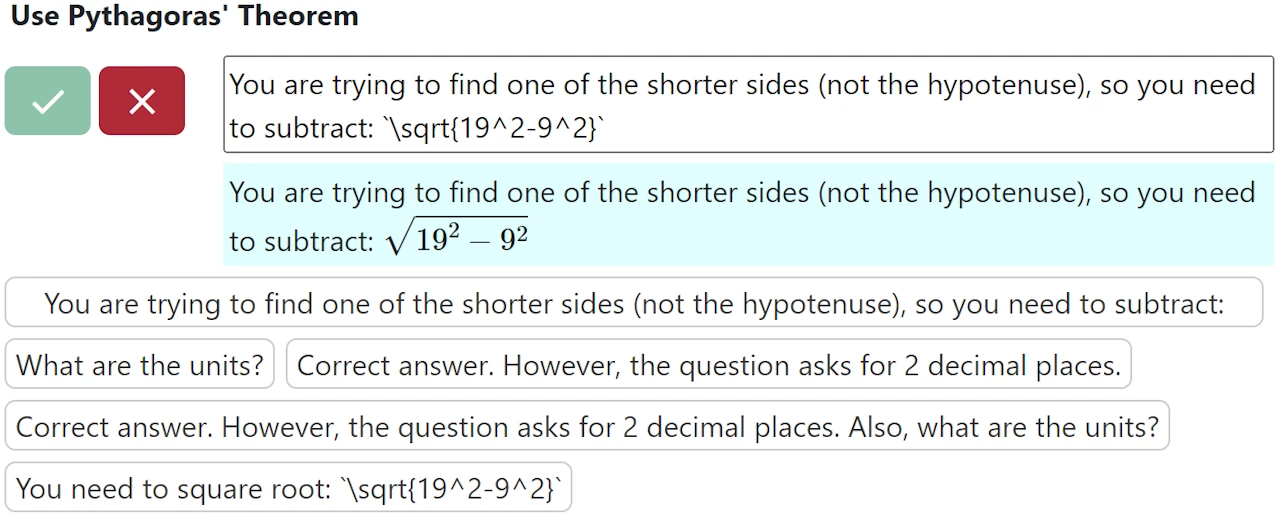
Optionally, you can leave written comments to let students know where they went wrong. These will be shown on the feedback printouts and to parents if you email the test results home. When you leave a comment for one student, it is automatically saved as a template so you can reuse it for other students.
You can use LaTeX within backticks (`) to display mathematical notation such as fractions and square roots.
Measure angles
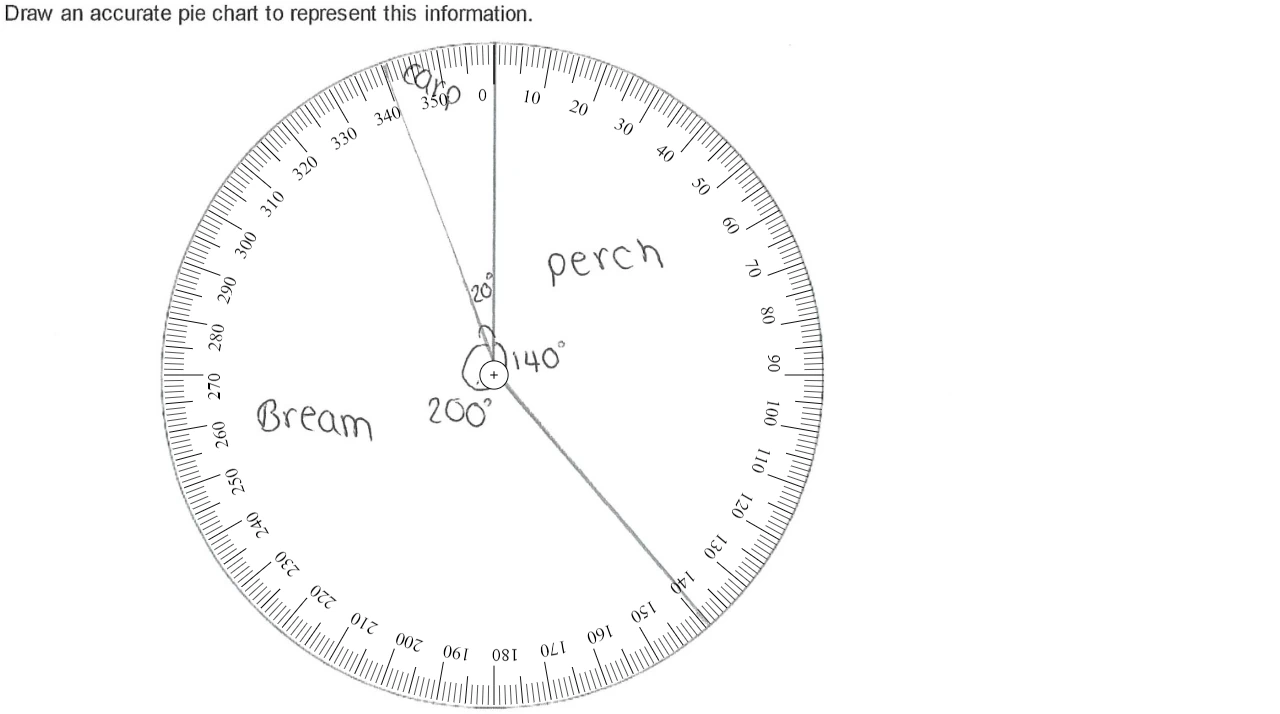
There is a protractor tool to help you measure angles, for example when marking pie charts.
Click the protractor button pie_chart_outline (or press P), and then click and drag to move it around the student's work. Use the [ and ] keys to resize the protractor.
Identify anonymous students
For tests set up to award numerical marks, student names are hidden by default. This is intended to protect against unconscious bias.
You can override this by adding ?showNames=true to the URL.
Flag responses for moderation
If you are unsure about exactly how many marks to award, you can click the flag button outlined_flag (or press F). Then when you later come to moderate as a department, you can use the shield button shield to jump to each moderation flag.
Use red/green consistently
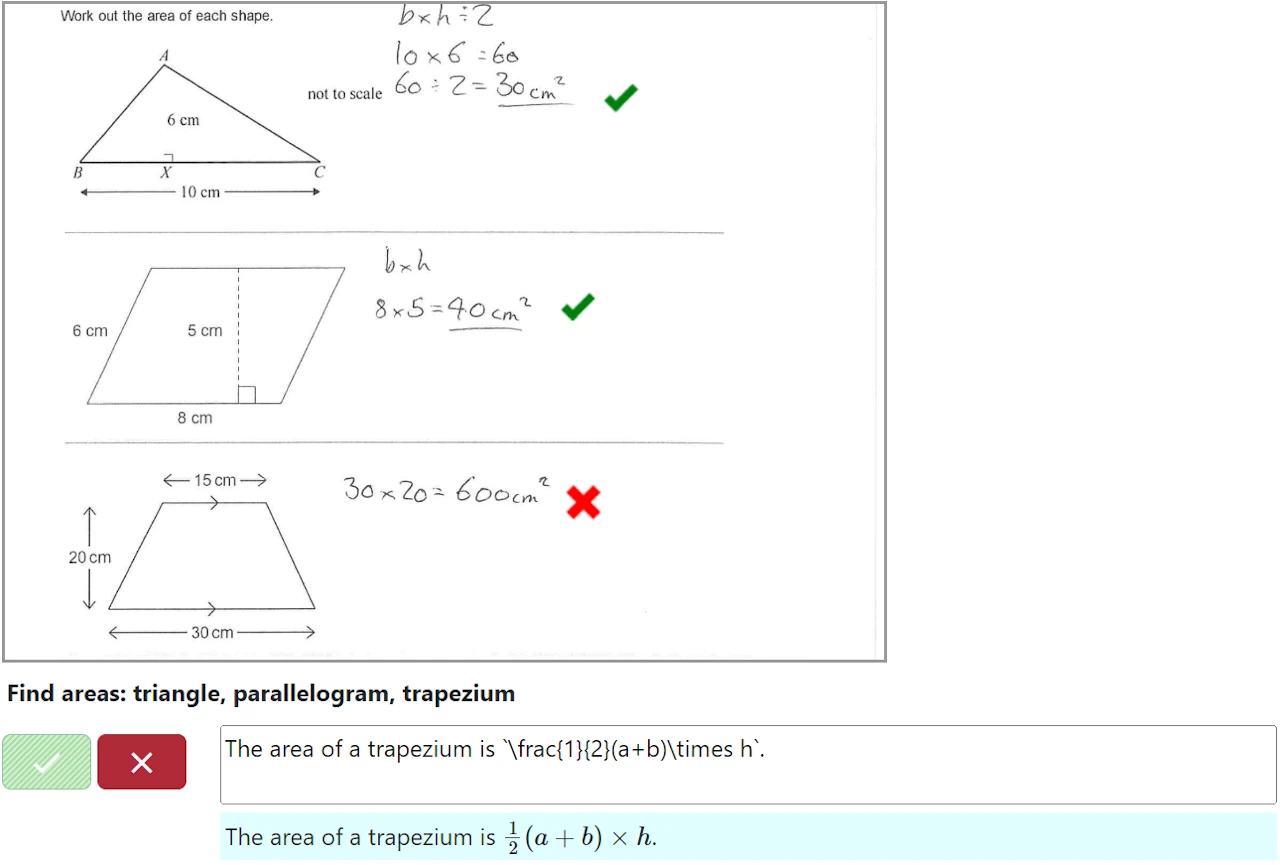
MiniTest is designed to be used with this consistent approach:
- Green: The answer is fully correct. Only award this if there are no mistakes.
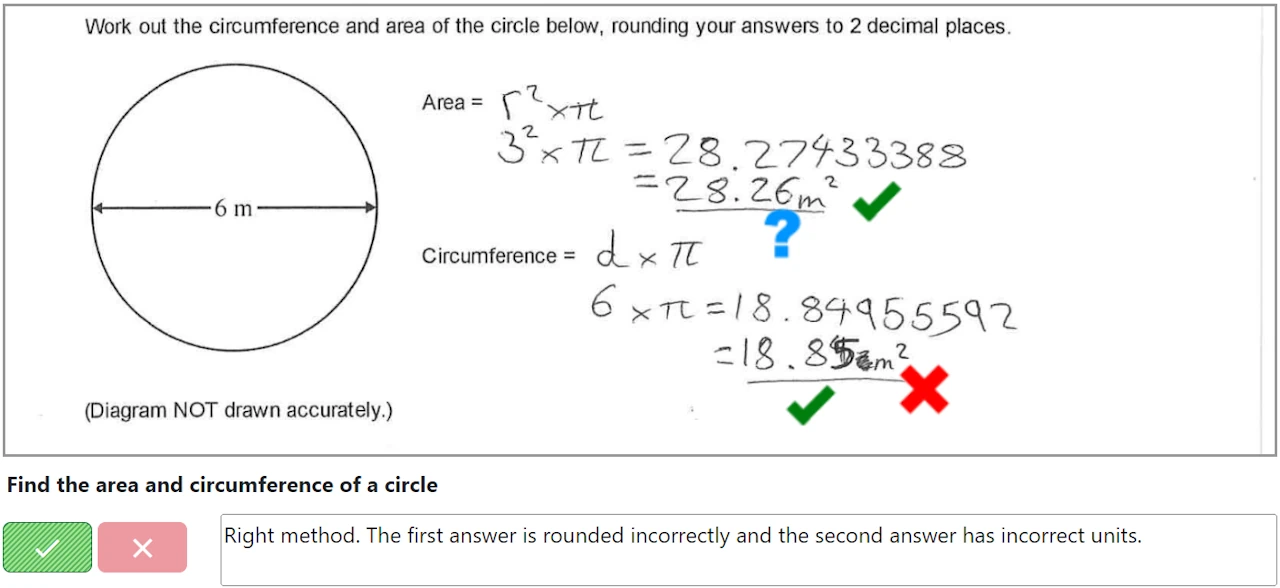
- Amber: The student fully understands the topic, but has made an unrelated mistake. For example, award this if a student has shown all the right working but made a rounding error at the end or omitted the units of their answer. To indicate Amber, annotate a cross or question mark anywhere on the student work and then press the Green button (which appears as a lighter stripy shade of green). This light green colour is used to emphasise that the student does fully understand. The amber colour only appears on student printouts and emails.
- Red: The student does not fully understand the topic. Award this if an answer is blank, incorrect, or partially correct. If there are multiple parts to a question and the student has got most of them correct but one part wrong, this is still Red because they do not fully understand the topic.
Example 1: The response below should be marked Red because the student has not demonstrated understanding of all parts of the question.
Example 2: The response below should be marked Amber because the student has demonstrated full understanding of both parts, but they have made some unrelated mistakes.