Add questions to your question bank
MiniTest comes with a built-in question bank of common GCSE Mathematics topics. You can also add your own questions and associate them with topics.
- Prepare your questions, for example in a Microsoft Word document. Leave some space beneath each question where students would write their answers.
- Print two copies. Leave one blank and handwrite model answers on the other. Scan these back in as JPEG images.
- Open MiniTest and create a new test. Set the class name to "Question Bank" and select "Use your own test" and "Use red/green".
- Upload the scans you prepared earlier, and go through the process of snipping and assigning topics.
- When asked to identify the scans, label them as "(Blank test paper)" and "(Set as model answers)". Select "Add questions to my school's question bank".
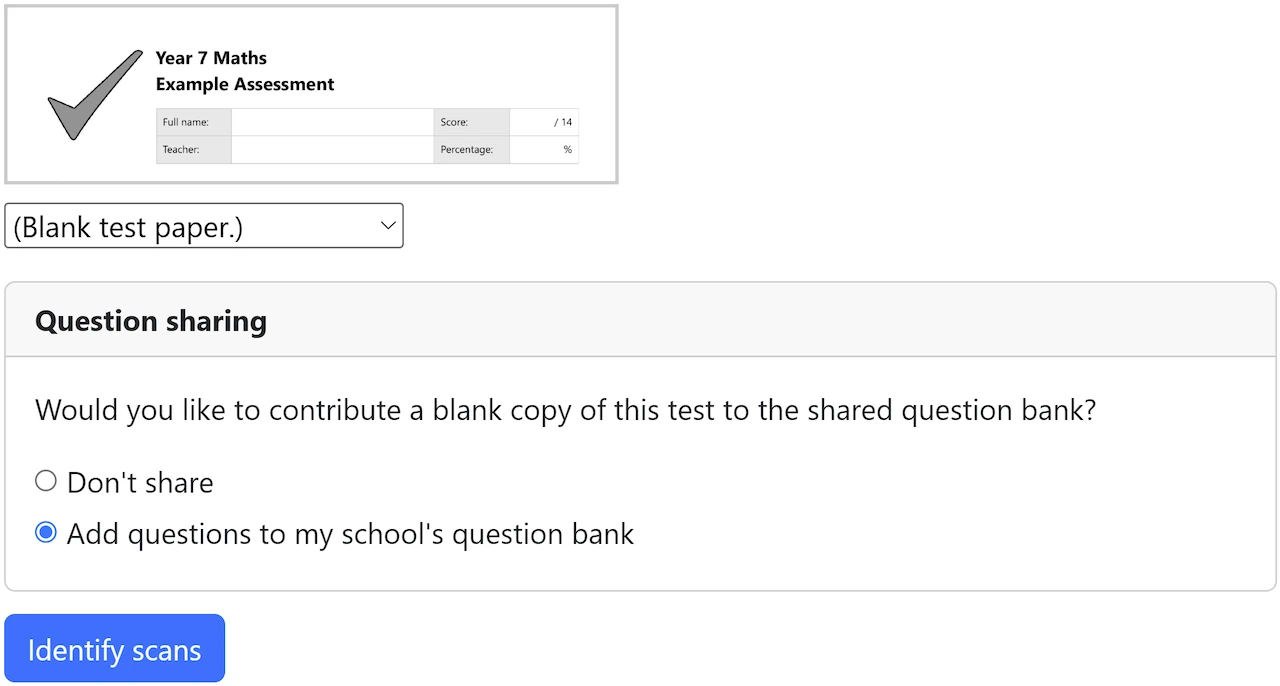
Note that the test you just created is solely for the purpose of adding to the question bank, and you should not upload student work to it. Instead, you can now create a new test using your question bank and assign that to one or more classes.
Manage your topic tree
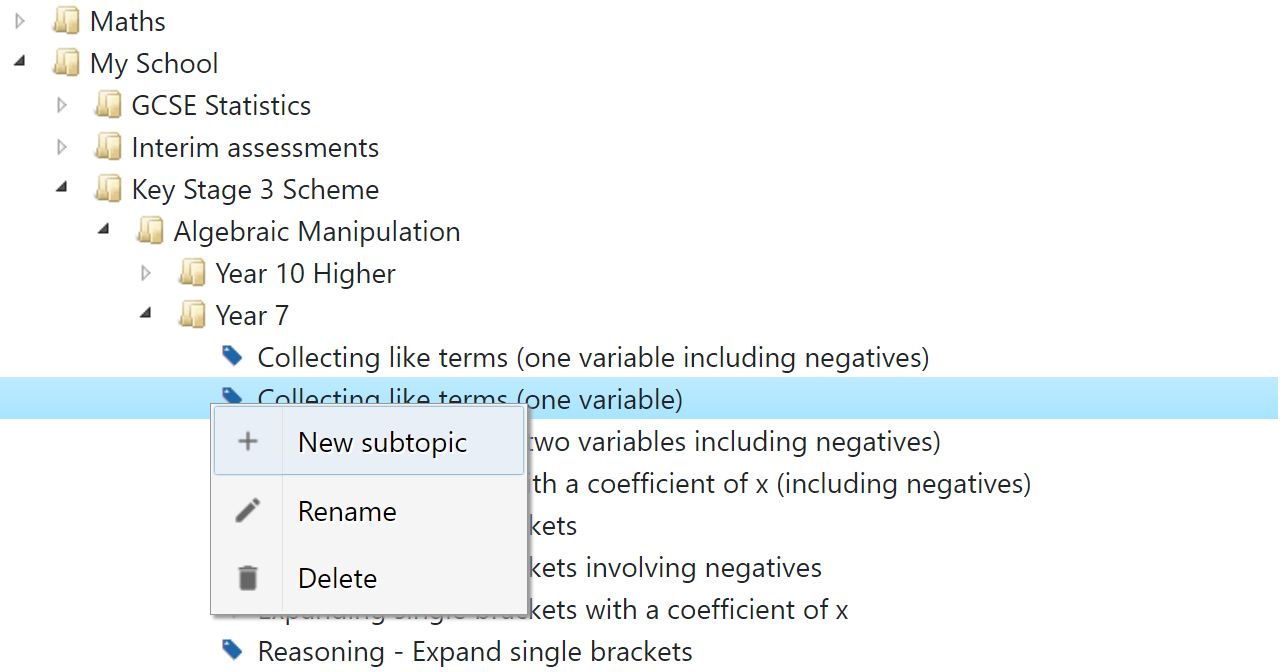
The topic tree has a root node called "Maths", which contains the shared Question Bank and cannot be edited. You will see another root node named after your school, and this is fully editable. Right-click to add subtopics to any node (which automatically turns it into a folder). You can also click and drag to move topics around.